Website Preview
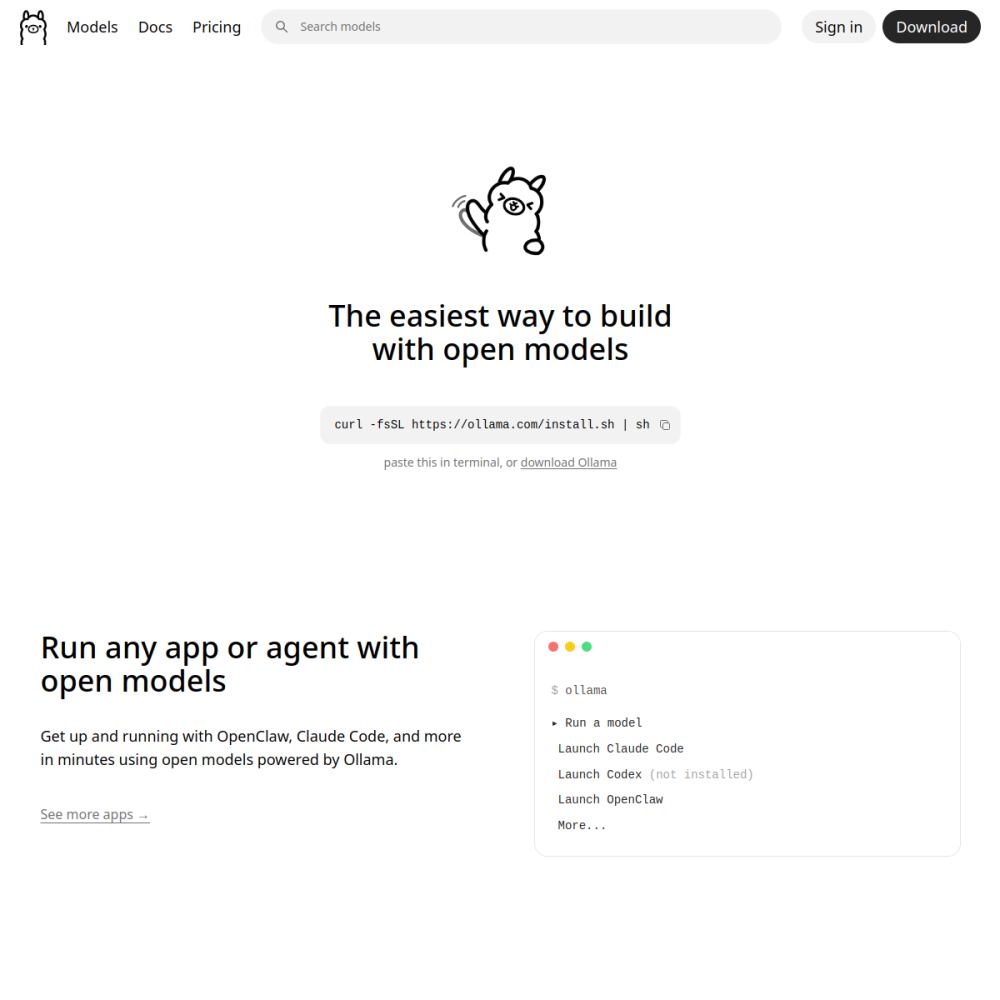
Tool Guide
Ollama is a tool designed to help users run large language models locally on their own hardware. It simplifies the process of managing and interacting with various AI models without relying on external cloud services. This framework handles the complexity of downloading and executing models directly on your system.
By keeping the processing on your machine, this tool ensures that data does not need to leave your environment. This setup is ideal for those who want to experiment with AI capabilities while maintaining strict control over their information. It provides a straightforward path to integrating AI into local workflows.
Ollama is a framework that allows users to run large language models locally. It handles the complexity of downloading and managing model files efficiently. This means you can interact with AI without sending data to external servers, keeping everything within your own network.
The tool focuses on making local execution accessible for everyone. It abstracts away the technical hurdles usually associated with running large models. Users can focus on the application rather than the underlying infrastructure requirements.
The primary feature of Ollama is its ability to execute models locally. Users can download specific models and run them directly through a command-line interface or API. This removes the need for constant internet connectivity during usage, allowing for offline operation once installed.
Model management is streamlined within the tool. You can switch between different models easily to test performance or behavior. This flexibility allows for quick iteration when building or testing local AI applications without complex configuration steps.
Developers building AI applications often use Ollama to test integrations before deploying them. It provides a sandbox environment where code can be validated against different model versions without external dependencies. This helps in debugging and optimizing local AI features.
Privacy-conscious users also benefit from this local approach. Individuals who handle sensitive data can process information without sending it to third-party servers. This makes it suitable for personal automation or secure workflow tasks where data confidentiality is paramount.
A common use case involves creating local chatbots for personal assistance. Users can configure models to answer questions or summarize text using their own hardware resources. This ensures that conversations remain private and stored locally on the user's device.
Another application is integrating AI into existing software projects. Developers can call the local API to add intelligence to their applications. This allows for custom features that rely on local processing power rather than cloud subscriptions or external endpoints.
To begin, visit the official website to download the software for your operating system. Installation is straightforward, and once complete, you can access the command line to start managing models. Ensure you have sufficient storage space for the model files you intend to use.
Start by running a simple model command to verify functionality. Ensure your hardware meets the requirements for the specific model you choose. Managing resources effectively will help maintain performance during local execution and prevent system slowdowns.
You need internet to download models initially, but they run locally afterward without requiring constant connectivity.
No, processing happens on your machine, keeping data local and preventing transmission to third-party cloud services.
Use the command-line tools provided to pull, run, and remove models as needed for your specific projects.