Claude Code Launches Agent View, an Interface to Manage All AI Sessions
Claude Code Launches Agent View, an Interface to Manage All AI Sessions
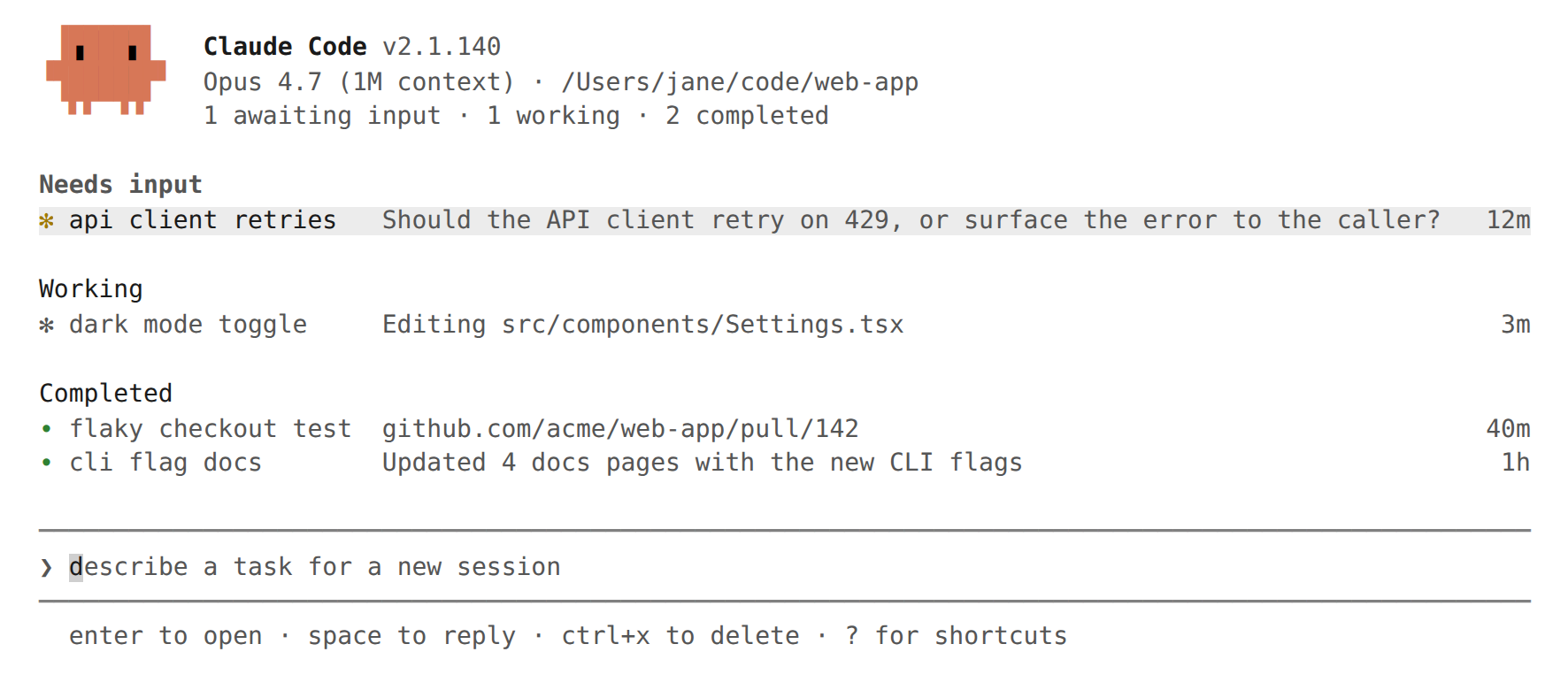
Running `claude agents` opens a screen for all background sessions: what is running, what needs your input, what is completed. Schedule new sessions, view their status at a glance instead of scrolling through logs, intervene only when needed. Each background session is a complete Claude Code conversation, continuing to run without a terminal connection, so you can open it, reply, and leave anytime.
When you have multiple independent tasks Claude can handle without you watching every step, use agent view. Schedule a bug fix, a pull request review, and an unstable test investigation as three lines, continue working in another window, check back when a line shows it needs you or has results.
When you want to work more directly in any agent's session, attach to the line to enter the full conversation.
To compare agent view with subagents, agent teams, and worktrees, see Running Agents in Parallel.
Agent view is in research preview, requires Claude Code v2.1.139 or higher. Use `claude --version` to check your version. As the feature develops, the interface and shortcuts may change.
- Quick start: Give Claude a task to handle in the background, check on it, and intervene when needed
- Monitor sessions using agent view, including status icons, peeking and replying, attaching, organizing, and shortcuts
- Schedule new agents, from agent view, from within a session, or from the shell
- Manage sessions from the shell, using `claude agents`, `claude attach`, and related commands
- How background sessions are hosted, by a supervisor process
Quick Start
This walkthrough covers the core agent view loop: scheduling a task, watching its line update as Claude works, peeking to check on it and reply, and attaching to the full conversation. The sessions you schedule continue running after you close agent view, so you can leave and come back to them later. Open agent view
From your shell, run: Agent view opens, with an input box at the bottom, and the table fills as sessions start. Press `Esc` anytime to return to your shell. Your sessions continue running while you are away and reappear the next time you open agent view. `claude agents` as your primary entry point instead of `claude`: schedule each task from agent view, attach when you want the full conversation, press `←` to return to the table.
Monitor Sessions with Agent View
Run `claude agents` to open agent view. It takes over the entire terminal and lists every session grouped by status, with fixed sessions and those needing you at the top. Each line shows the session's name, current activity, and time of last change.
Names are colored with the color set by `/color` in that session. Starting from v2.1.199, when you background a session with `←` or `/background`, the color is preserved.
By default, the list shows every background session you started, across all projects. A session working in one repository and another working in a different worktree will both appear here, regardless of which directory you open agent view from. To limit the list to one project, pass `--cwd`:
Sessions under `~/projects/my-app/.claude/worktrees/` still count as belonging to `~/projects/my-app`.
Interactive sessions you opened in other terminals will not appear until you background them. Subagents and teammates sessions generated will not be listed as separate lines.
Read Session Status
Each line starts with an icon, whose color and animation show the session's status:
Additionally, the shape of the icon shows whether the underlying process is running:
The `#N` label that may appear on the right edge of the line is the pull request opened by the session, not part of the status icon.
Terminal tab titles show the count of sessions awaiting input when agent view is open: displaying `2 awaiting input · claude agents` when sessions need input, or `claude agents` when no sessions need input.
Starting from v2.1.198, when agent view is open, Claude Code also sends notifications via your configured terminal notification channel when local background sessions start needing your input, complete, or fail. Sessions running on a plan, such as `/loop` sessions, only notify when they need your input. Notifications use the same `preferredNotifChannel` setting as the rest of Claude Code and trigger the Notification hook with `agent_needs_input` or `agent_completed` types.
Background sessions do not need any open terminal to continue working. A separate supervisor process runs them, so you can close agent view, close your shell, or start a new interactive session, and your scheduled work continues.
Session status is persisted on disk via automatic updates and supervisor process restarts. Sessions are also preserved when your machine sleeps. Their processes resume upon wake, and the supervisor process reconnects to them, rather than treating the time gap as idle. Closing will still stop running sessions; see Sessions Show as Failed After Closing to learn how to recover them.
When you open a session that has stopped responding, the supervisor process restarts its process, and the session continues the interrupted response from where it left off. Sessions may get stuck in this state if the machine sleeps mid-response. Requires Claude Code v2.1.200 or higher.
Row Summaries
The single-line summary in each row is generated by a Haiku-class model, so the line can tell you what the session is doing, what it needs, or what it generated, without opening the log. When the session is actively working, the summary refreshes from the session's own recent output at most every 15 seconds without sending model requests, and the model writes a new summary at the end of each turn. Working lines show what the session says it is doing, blocked lines show the question it asked. During long turns, the model also rewrites the summary approximately every minute, doubling the wait time after each rewrite, up to four minutes, so busy lines do not continue showing outdated summaries. Text is truncated at 64 columns; open the peek panel to read the full sentence. Before v2.1.205, working lines may show raw tool calls instead of reports, and sessions running parallel work items display a `done/total` count before the text, such as `2/5`.
When the list is grouped by directory, summaries start with the session's status as a colored word, such as `Needs input · double jump or wall climb?`. In the default status grouping, the group header already names the status, so the line only shows the summary. Before v2.1.205, lines grouped by directory did not have the status word.
Turns with no output containing letters or numbers, such as `/loop` sessions with quiet iterations printing a single symbol, keep the line's previous summary and status. Before v2.1.205, that turn was reclassified, potentially flipping a session waiting for your input back to Working.
End-of-turn summaries and mid-turn rewrites are a short Haiku-class request through your normal provider, billed and processed under the same data usage terms as the session itself. Updates between the 15-second model rewrites reuse the session's own output and do not send requests. On third-party providers (such as Amazon Bedrock, Google Cloud's Agent Platform, Microsoft Foundry, and custom gates), when no Haiku model is configured, requests fall back to the session's main model. Set `ANTHROPIC_DEFAULT_HAIKU_MODEL` to select the model for these summaries on these providers.
Pull Request Status
When a session opens a pull request, a `#1234` label appears on the right edge of the line, linking to the pull request in terminals that support hyperlinks. The label persists when you send follow-ups to the session, so the pull request remains visible when the line returns to live progress. Background sessions isolated in a worktree open these pull requests themselves; How File Edits Are Isolated covers when this happens and what sessions never do without asking.
Sessions handling existing pull requests link to them in the same way. Use `gh` edit, comment, close, or mark pull request as ready link commands to name the pull request in their own output, so `gh` commands that capture output do not name the pull request and do not create links; `gh pr merge` is a common case, as it only prints its result to the interactive terminal. Use `gh pr checkout` to check out a pull request, or push to a branch with an open pull request, to link it by instead using `gh pr view` to find that branch. Before v2.1.205, only pull requests created or checked out by the session were linked, and pushes only linked one when the local branch name matched.
Claude Code reads pull requests from the full command output, including parts saved to files when the command's output exceeds the inline limit. Before v2.1.205, pull requests created in Bash calls with output exceeding approximately 30,000 characters were not linked.
When a session links to multiple pull requests, the label shows a count, such as `3 PRs`, colored by the open pull request needing the most attention. Open the peek panel to view them all.
Pull request numbers are colored by their status:
For most tasks, this column is where you collect results: review and merge the pull request when its number turns green.
Peek and Reply
Press `Space` on the selected line to open the peek panel. It opens showing the session's full status sentence, which the line truncates, and the time of its last change, followed by any pull requests linked to the session. For sessions waiting for you, the exact question it asked also appears above the reply input. Most of the time the peek panel is sufficient, and you do not need to open the full log.
Before v2.1.205, the panel only repeated the status sentence when there was nothing else to show, and named the longest-running parallel work item.
Enter a reply in the peek panel and press `Enter` to send it to that session. When the session asks a multiple-choice question, the peek panel shows options, and you can press a number key to select one. For other blocked sessions, press `Tab` to fill the input with a suggested reply, which you can edit before sending. Prefix a reply with `!` to send a Bash command.
With voice dictation enabled, hold or click your push-to-talk key to dictate a reply instead of typing when the reply input has focus. The same feature works in the scheduling input at the bottom of agent view.
Use `↑` and `↓` to peek at adjacent sessions without closing the panel, or `→` to attach.
Attach to Session
On the selected.
This page provides an editorial summary based on publicly available information. It is not a republished article. Use the source link below for the original report.