Microsoft GitHub Copilot Announces Shift to Usage-Based Billing
GitHub Copilot announces a shift to usage-based billing starting June 1st, replacing fixed quotas with AI Credits, billed by Token consumption. Base subscription prices remain unchanged: Pro at $10/month and Pro+ at $39/month, both including equivalent Credits, with code completion not consuming quota. The Enterprise version supports a shared quota pool, and Business and Enterprise customers can receive extra promotional credits from June to August. Annual users maintain their original billing until expiration.
About GitHub Copilot and JetBrains IDE
GitHub Copilot provides AI autocomplete-style suggestions to programmers when writing code. For more details, see "About GitHub Copilot Individual".
If you use a JetBrains IDE, you can view and merge suggestions from GitHub Copilot directly in the editor. This guide demonstrates how to use GitHub Copilot in JetBrains IDEs for macOS, Windows, or Linux.
Prerequisites
-
To use GitHub Copilot, you must have a valid GitHub Copilot subscription. For more details, see "About GitHub Copilot Billing".
To use GitHub Copilot in JetBrains, you must install a compatible JetBrains IDE. GitHub Copilot is compatible with the following IDEs: - IntelliJ IDEA (Ultimate, Community, Educational)
- Android Studio
- AppCode
- CLion
- Code With Me Guest
- DataGrip
- DataSpell
- GoLand
- JetBrains Client
- MPS
- PhpStorm
- PyCharm (Professional, Community, Educational)
- Rider
- RubyMine
- RustRover
- WebStorm
For more details, see the JetBrains IDE Tool Finder.
Install the GitHub Copilot Extension in JetBrains IDE
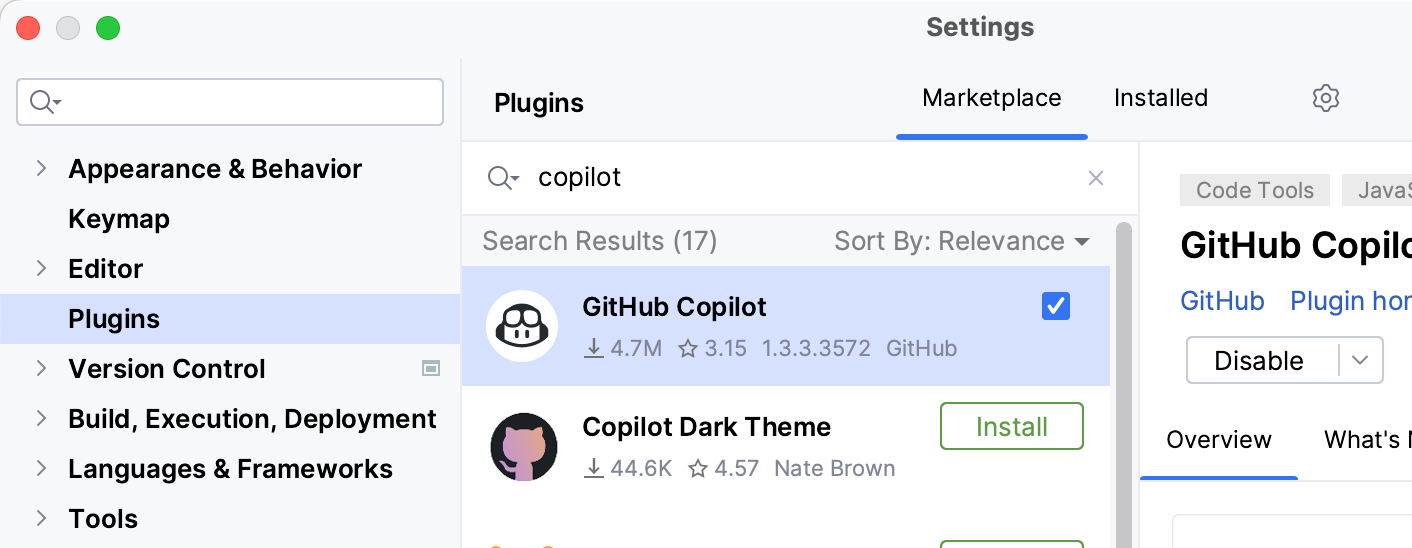
To use GitHub Copilot in a JetBrains IDE, you must first install the GitHub Copilot extension. The following process guides you through installing the GitHub Copilot plugin in IntelliJ IDEA. The steps to install the plugin in another supported IDE may vary.
In the JetBrains IDE, under the "File" menu (Windows) or the IDE name (Mac) (e.g., PyCharm or IntelliJ), click "Settings" (Windows) or "Preferences" (Mac).
In the left menu of the "Settings/Preferences" dialog, click "Plugins".
At the top of the "Settings/Preferences" dialog, click "Marketplace". In the search bar, search for "GitHub Copilot", then click "Install".
After installing GitHub Copilot, click "Restart IDE".
After the JetBrains IDE restarts, click the "Tools" menu. Click "GitHub Copilot", then click "Log in to GitHub".
In the "Log in to GitHub" dialog, to copy the device code and open the device activation window, click "Copy and Open".
The device activation window will open in the browser. Paste the device code, then click "Continue".
GitHub will request the permissions required for GitHub Copilot. To approve these permissions, click "Authorize GitHub Copilot Plugin".
Once permissions are approved, the JetBrains IDE will display a confirmation. To start using GitHub Copilot, click "OK".
View the First Suggestion
Note: If duplicate detection is enabled for GitHub Copilot, you may receive limited suggestions or no suggestions when using the provided code examples. As an alternative, you can first type your own code to see suggestions from GitHub Copilot. For more details on duplicate detection, see "Configure GitHub Copilot Settings on GitHub.com".
GitHub Copilot provides suggestions for multiple languages and various frameworks, but is particularly suitable for Python, JavaScript, TypeScript, Ruby, Go, C#, and C++. GitHub Copilot can also help generate database queries. The following example uses Java, but other languages work similarly.
- In the JetBrains IDE, create a new Java (*.java) file.
- In the Java file, create a class by typing class Test. GitHub Copilot will automatically suggest the class body in gray text. Specific suggestions may vary.
- To accept the suggestion, press Tab.
- To prompt GitHub Copilot to suggest a function body, type the following line below the main function parentheses. Specific suggestions may vary. Java int calculateDaysBetweenDates( int calculateDaysBetweenDates(
GitHub Copilot will attempt to match the context and style of the code. You can always edit the suggested code.
View Alternative Suggestions
For any given input, GitHub Copilot can provide multiple suggestions. You can choose which suggestion to use, or reject all suggestions.
In the JetBrains IDE, create a new Java (*.java) file.
To prompt GitHub Copilot to display suggestions, type the following line in the Java file. Java int calculateDaysBetweenDates( int calculateDaysBetweenDates(
(Optional) If there are other suggestions, you can choose to view them.
To accept the suggestion, press Tab. To reject all suggestions, press Esc.
View Multiple Suggestions in a New Tab
You may not want any of the initial suggestions provided by GitHub Copilot. You can use keyboard shortcuts to prompt GitHub Copilot to display multiple suggestions in a new tab.
Open a new tab containing multiple additional suggestions. - On macOS, press Command+Shift+A, then click "Open GitHub Copilot", or press Command+Shift+< to immediately open a new tab.
- On Windows or Linux, press Ctrl+Enter, then click "Open GitHub Copilot".
To accept a suggestion, click "Accept Solution" above the suggestion. To reject all suggestions, close the tab.
Generate Code Suggestions from Comments
You can use natural language in comments to describe what to do, and GitHub Copilot will provide code suggestions to achieve your goal.
To prompt GitHub Copilot to suggest an implementation of a function in a Java file, type the following line. Java // find all images without alternate text // and give them a red border void process () {// find all images without alternate text // and give them a red border void process () {
Enable or Disable GitHub Copilot
You can enable or disable GitHub Copilot for all languages or for a single language. The GitHub Copilot status icon in the bottom panel of the JetBrains IDE window indicates whether GitHub Copilot is enabled or disabled. When enabled, the icon will be highlighted. When disabled, the icon will be grayed out.
To enable or disable GitHub Copilot, click the status icon in the bottom panel of the JetBrains window.
If you want to disable GitHub Copilot, the system will ask whether to disable it globally or disable the language of the file currently being edited. - To globally disable GitHub Copilot suggestions, click "Disable Completion".
- To disable GitHub Copilot suggestions for a specific language, click "Disable LANGUAGE Completion".
About GitHub Copilot and Visual Studio
If you use Visual Studio, you can view and merge suggestions from GitHub Copilot directly in the editor. This guide demonstrates how to use GitHub Copilot in Visual Studio for Windows.
To use GitHub Copilot in Visual Studio, you must install Visual Studio 2022 17.6 or higher. For more details, see the Visual Studio IDE documentation.
Note: GitHub Copilot is currently not available for Visual Studio for Mac.
Install the GitHub Copilot Extension in Visual Studio
To use GitHub Copilot, you must first install the GitHub Copilot extension.
In the Visual Studio menu bar, click "Extensions", then click "Manage Extensions".
In the "Manage Extensions" window, click "Visual Studio Marketplace", search for the GitHub Copilot extension, then click "Download".
Close the "Manage Extensions" window, then exit and restart Visual Studio.
(Optional) To check if GitHub Copilot is installed and enabled, return to "Manage Extensions", click "Installed Extensions" to view currently installed extensions, then click "GitHub Copilot" to view status information.
Open or create a new project in Visual Studio.
To enable GitHub Copilot, ensure you have added a GitHub account to Visual Studio. For more details, see "Using a GitHub Account in Visual Studio" in the Microsoft documentation.
In Visual Studio.
This page provides an editorial summary based on publicly available information. It is not a republished article. Use the source link below for the original report.